
Step-by-step guide on how to set up a free email service using your own company domain
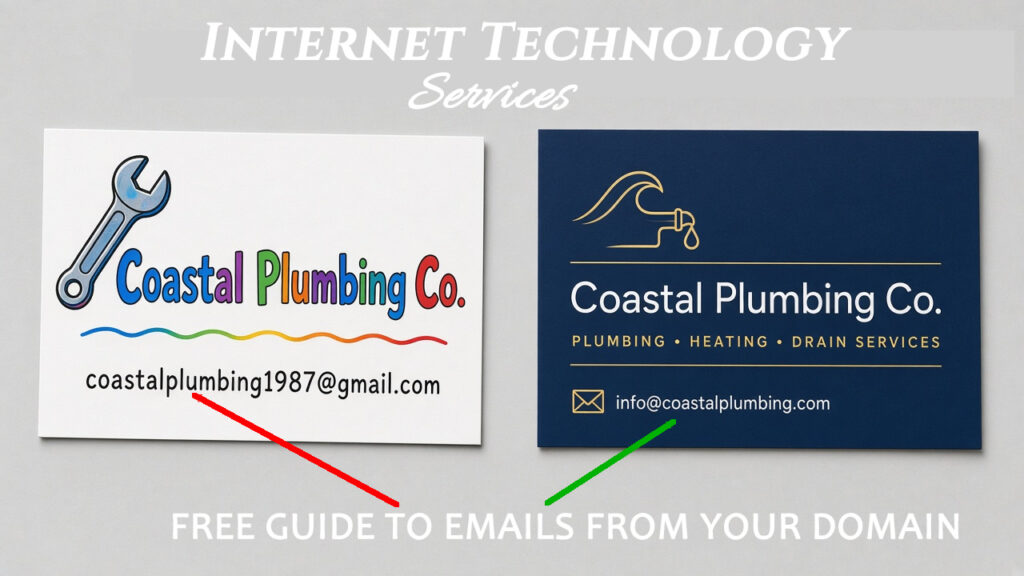
Step-by-step guide on how to set up a free email service using your company domain
A custom-domain address like you@yourbusiness.com makes your business look more trustworthy and professional than a free @gmail.com or @yahoo.com address. It also lets you control your own email reputation and you can access customer communications from a terminated employee if necessary.
- Trust and credibility: Customers can see that the email comes from the same business as your website.
- Branding: Every email you send puts your company name in front of the person reading it.
- Deliverability and spoofing protection: You can publish SPF, DKIM, and DMARC records for your own domain. These help receiving servers confirm your mail is genuine and make it harder for others to fake your address.
- You own the address: When someone leaves, the business keeps their mailbox and address. You can reassign it or forward it so customer emails aren’t lost.
- Looking professional: A branded address shows you’re an established business, not a side account.
How do I get a custom-domain email address for free?
Assuming you already own the company domain. The easiest way to get a free email address at your own domain (like you@yourbusiness.com) is Zoho Mail’s Forever Free plan: sign up for Business Email, verify your domain with one DNS record, create your admin mailbox, then add Zoho’s MX, SPF, and DKIM records. The plan covers up to 5 users on one domain with 5 GB per user, at no cost.
Prefer to skip the DNS work? ITS can set up your custom-domain email for you, including all DNS records, as a paid service. Email its@internettechnologyservices.com or call (949) 446-1716.
Which free email hosts support a custom domain?
| Provider | Free? | Users | Storage | Attachment / message size | IMAP/POP | Domains | Ads | Source |
|---|---|---|---|---|---|---|---|---|
| Zoho Mail Forever Free | Yes | Up to 5 | 5 GB per user | 25 MB attachment limit (unverified: not shown on the pricing page as fetched 2026-10-24) | Not included (web + mobile apps only) | 1 domain | Zoho markets its mail as “private, ad-free” (free-plan ad status: unverified) | Zoho Mail pricing |
| Cloudflare Email Routing | Free for forwarding | No mailboxes (forwards to an existing inbox); 200 destination addresses per account | None (no mailbox) | 25 MiB inbound | N/A (forwarding only) | Up to 30 per zone | Unverified | Cloudflare limits |
| Migadu | No longer free. Free plan replaced by Micro at $19/year | Unlimited addresses | 5 GB (soft limit) on Micro | Unverified | Unverified on pricing page | “Almost unlimited” on Micro | Unverified | Migadu pricing |
Our pick: Zoho Mail Forever Free. It’s the only one of the three that gives you a real, free mailbox. Cloudflare only forwards mail to an inbox you already have, and Migadu dropped its free plan.
Know the trade-offs. The free plan doesn’t include IMAP, POP, or ActiveSync, so you use Zoho’s web app or mobile apps instead of Outlook or Apple Mail. If you add a 6th user, Zoho says the whole organization has to move to a paid plan.
What do I need before I start?
- A domain you own (for example, yourbusiness.com).
- A login for the DNS manager where your domain’s nameservers point (GoDaddy, Cloudflare, Namecheap, your host, and so on). See the tips below on finding it.
- About 30 minutes, plus waiting time for DNS. Zoho’s setup screens say changes can take 30 minutes to 1 day to propagate, depending on TTL.
How do I set up Zoho Mail free with my domain?
These steps follow a real setup we did on 2026-10-24 using our example domain, ride-guides.com. Every screenshot below comes from that setup.
Step 1: Sign up for the Forever Free plan (choose Business Email)
- Find the Forever Free Plan on the Zoho Mail pricing page, or go straight to the free signup at
https://workplace.zoho.com/signup?type=org&plan=free. - On the Sign up for Zoho Workplace form, select Business Email. Don’t pick Personal Email, which gives you an @zohomail.com address instead of one at your domain.
- Enter your name, your current email address, mobile number, and a password, then confirm with the code Zoho texts you.
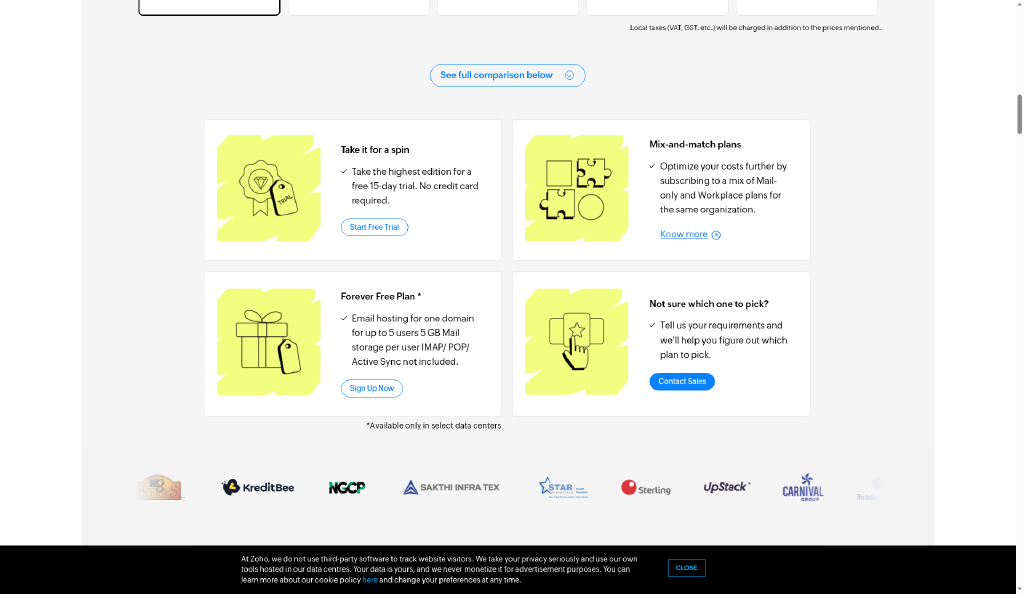
Screenshot 01: The Forever Free Plan on Zoho’s pricing page.
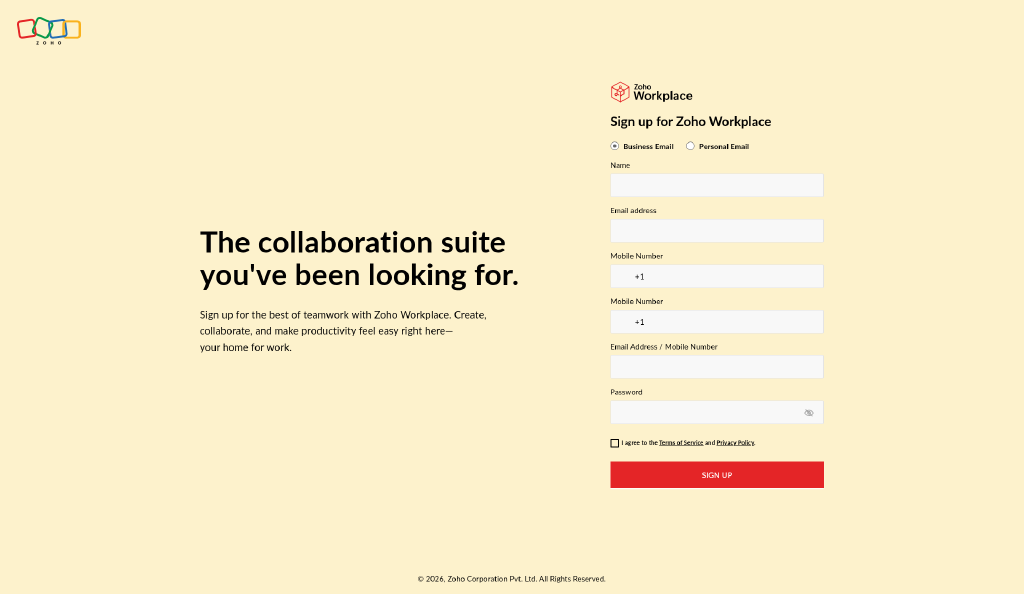
Screenshot 02: Pick Business Email, not Personal Email.
Step 2: Add your existing domain and organization name
- After signup, Zoho opens its Email Setup wizard at mailadmin.zoho.com. Under Add an existing domain, click Add now.
- Enter your domain name and your organization name, then continue.
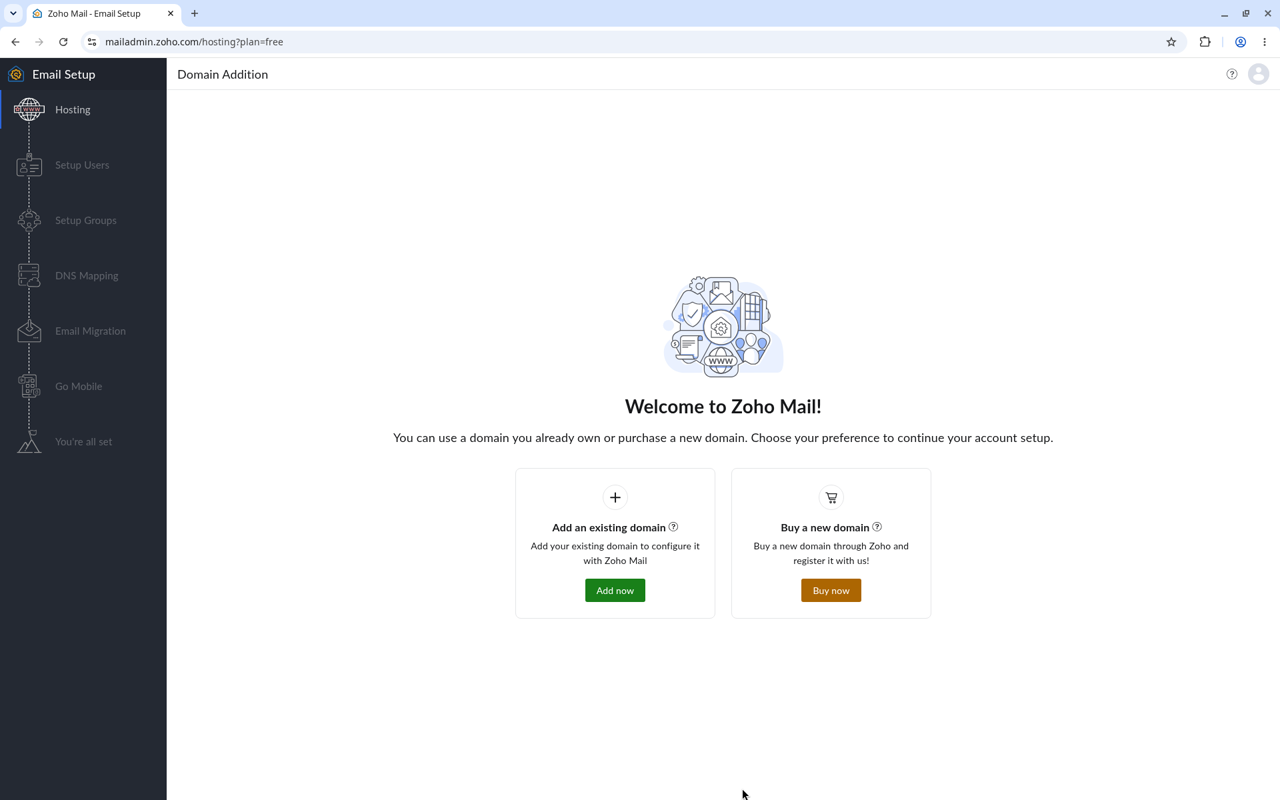
Screenshot 03: Choose “Add an existing domain.”
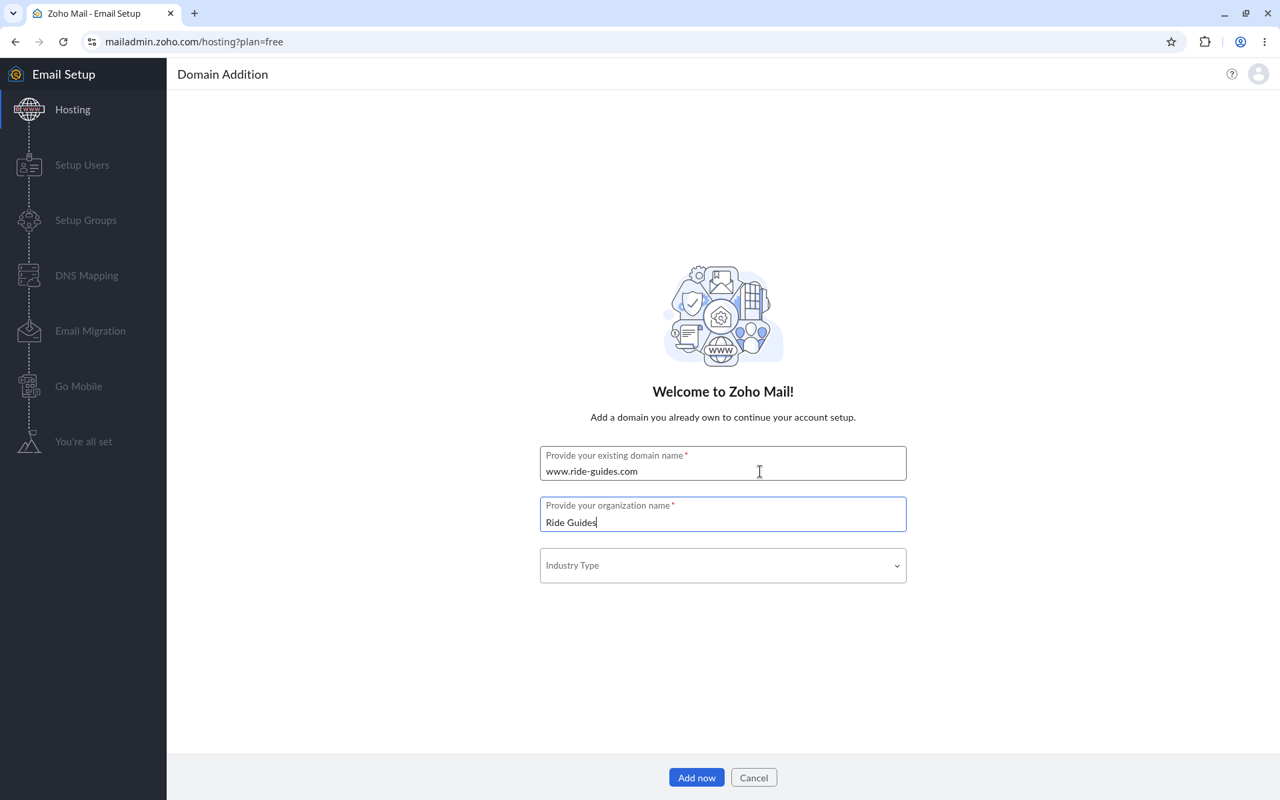
Screenshot 04: Enter your domain and organization name.
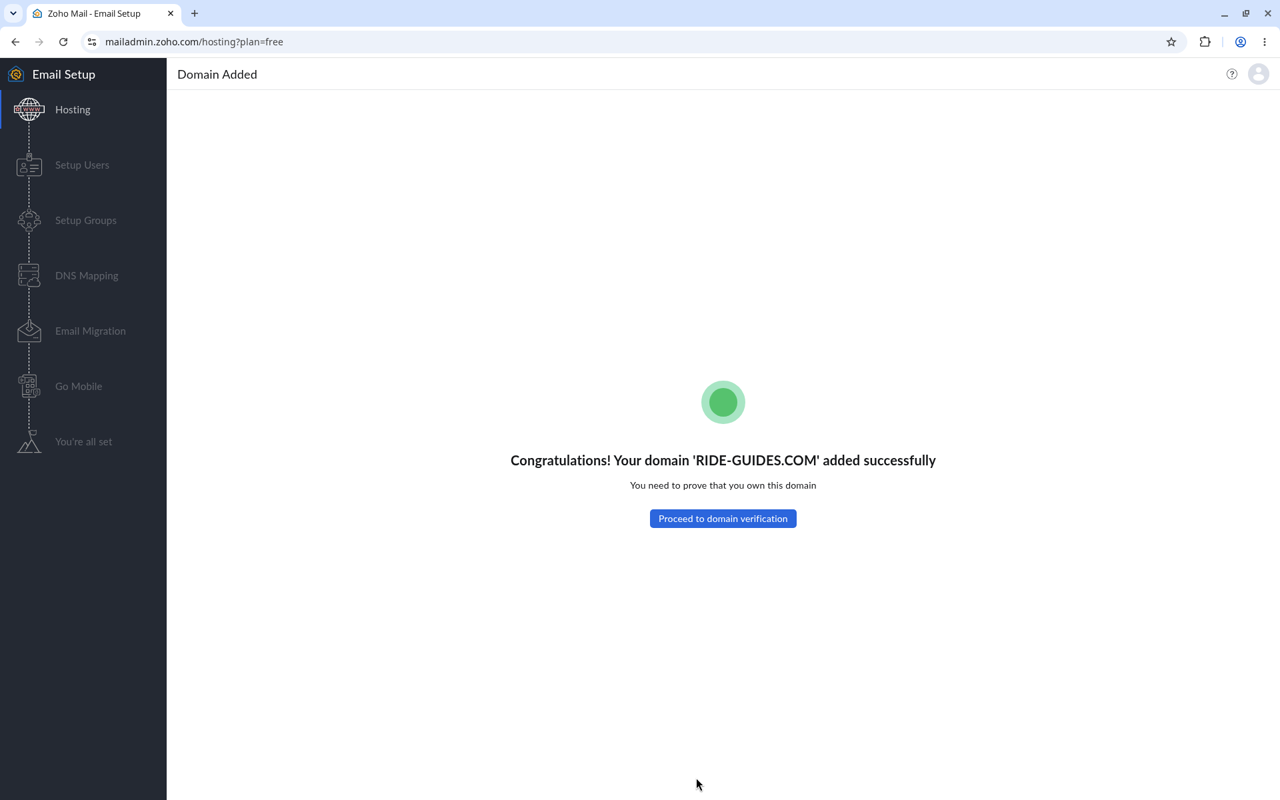
Screenshot 05: Domain added.
Step 3: From youre DNS Domain Name Service provider. Verify you own the domain (TXT or CNAME)
Zoho shows a Domain Verification page for your domain (in the admin console at mailadmin.zoho.com/hosting?domain=yourdomain.com). Pick one method:
TXT method (Zoho’s recommended option):
- Copy the value Zoho shows. It looks like
zoho-verification=zbXXXXXXXX.zmverify.zoho.comand is unique to your account. - In your DNS manager, add a TXT record with host
@(or blank) and that value. - Back in Zoho, click Verify TXT Record.
CNAME method (alternative):
- Choose the CNAME option in the dropdown.
- Add a CNAME record with host
zbXXXXXXXX(the code Zoho shows) pointing tozmverify.zoho.com. - Click Verify.
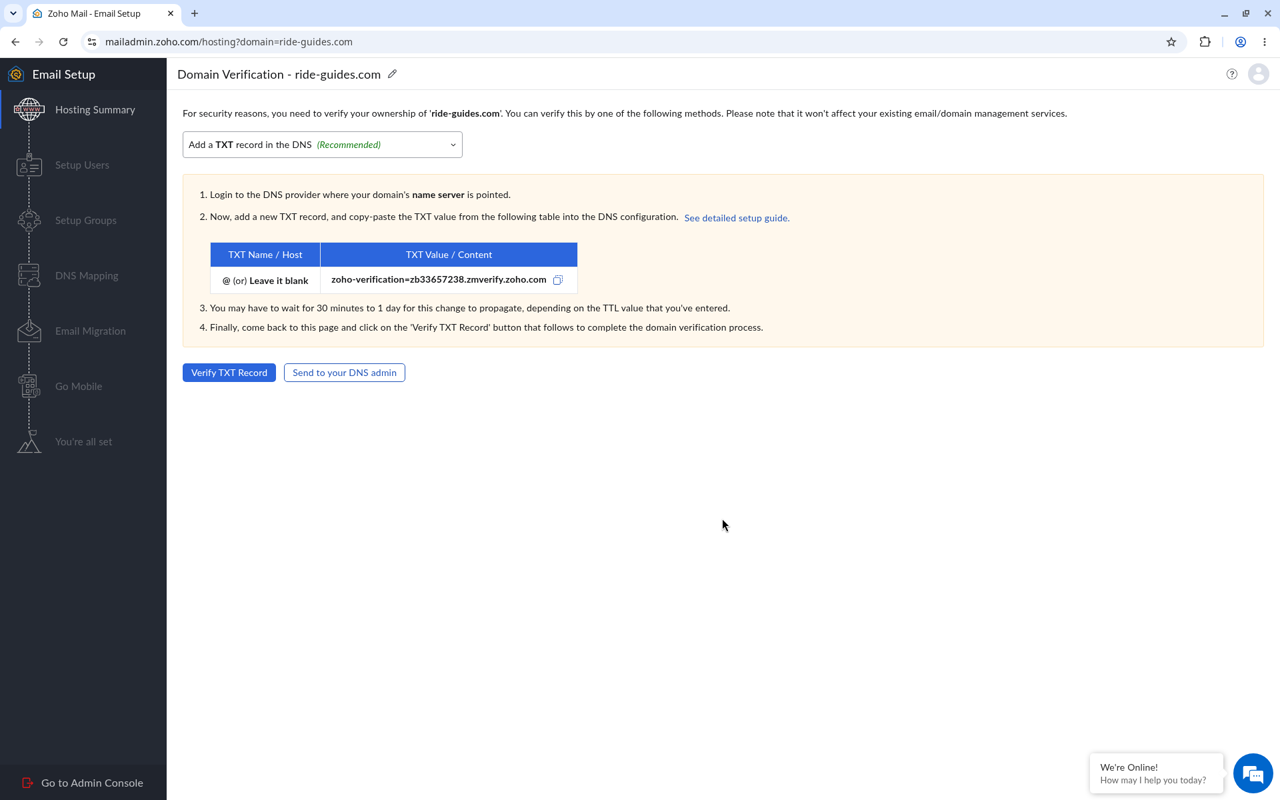
Screenshot 06: The TXT verification record Zoho asks for.
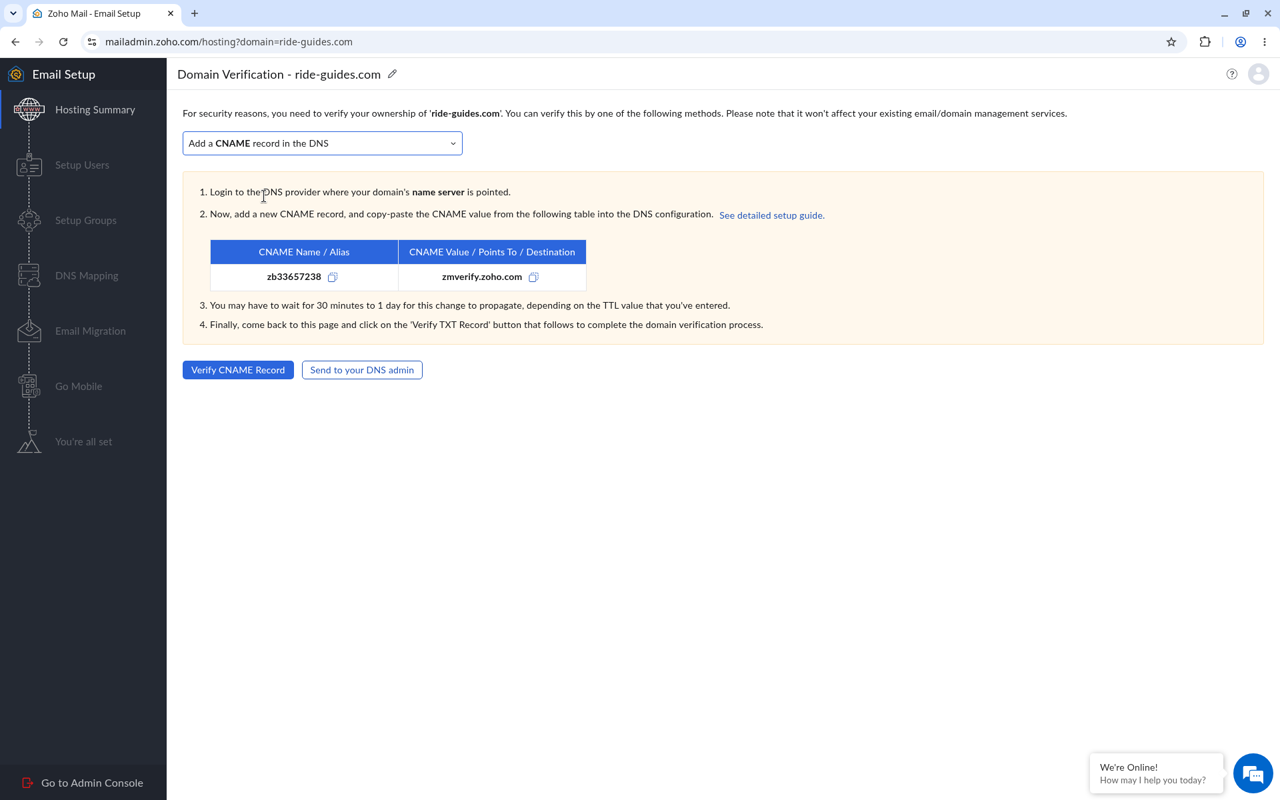
Screenshot 07: The CNAME alternative.
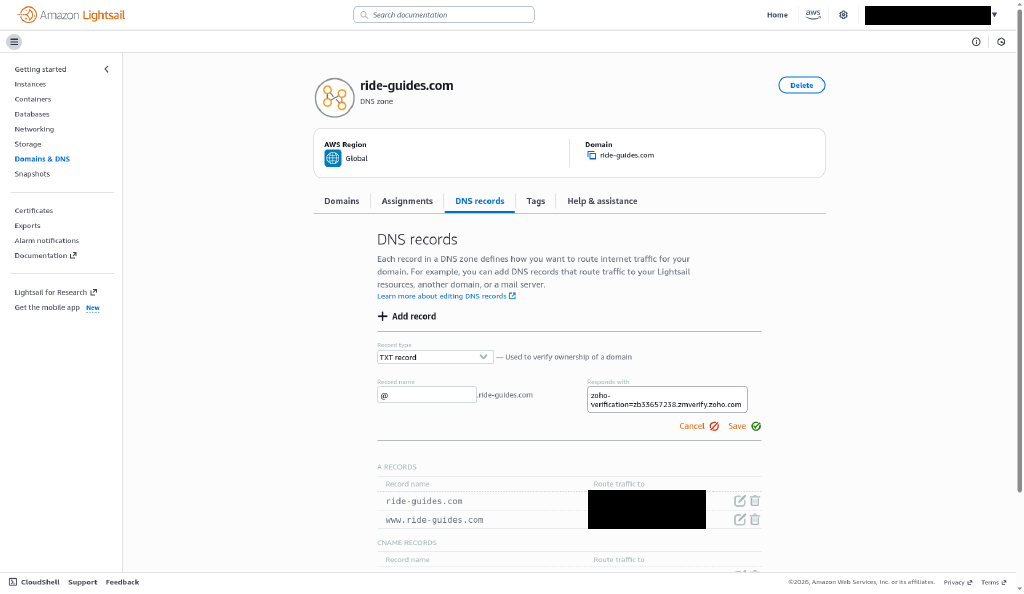
Screenshot 08: Example of adding the TXT record in a DNS manager. Your panel will look different, and the record only works in the DNS that is actually live for your domain (see tips below).
Step 4: Create your admin mailbox
Once the record is found, Zoho shows “You have now verified your domain ownership” on the Account Creation screen. You’re the Super Administrator, and you create your first domain address here.
- Type the address you want to log in with (for example,
info), then click Create. - Zoho moves on to Setup Users, where your new mailbox is listed. Add up to 4 more users here, or later.
- Continue through Setup Groups (optional) to DNS Mapping.
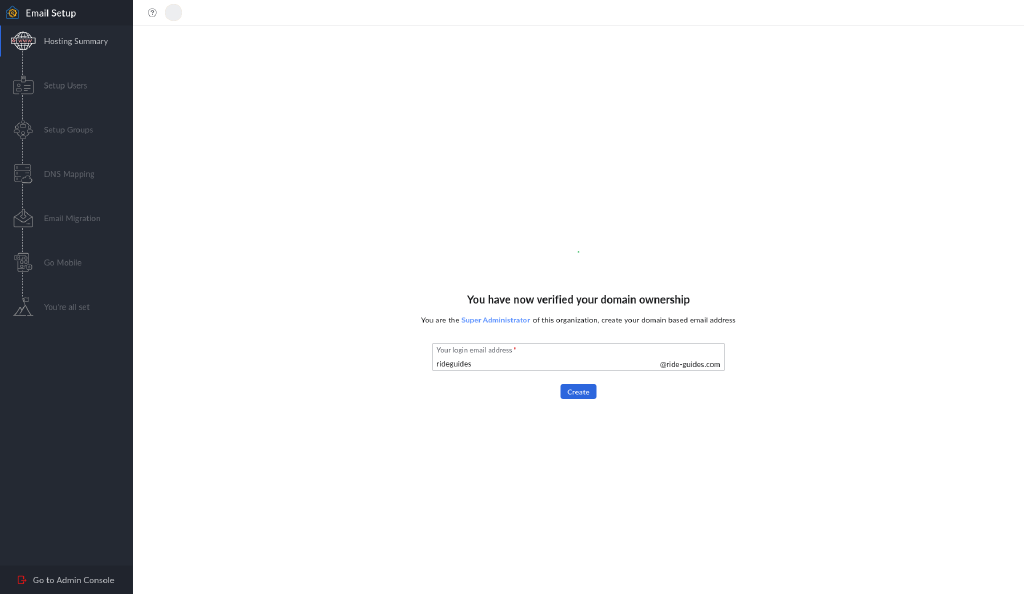
Screenshot 09: Domain verified.
Screenshot 10: The Account Creation step right after verification.
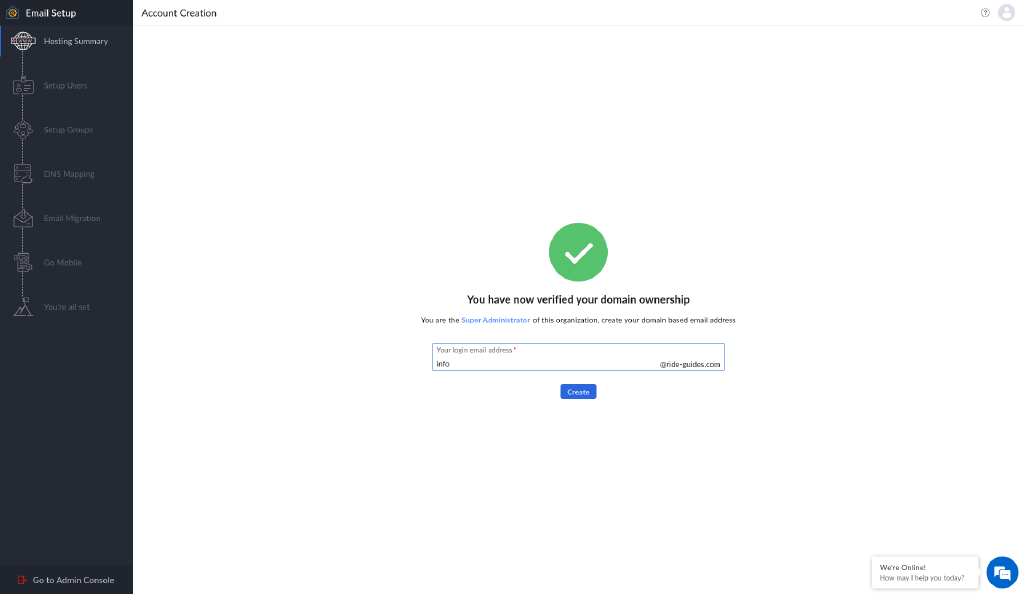
Screenshot 11: Choose your admin address and click Create.
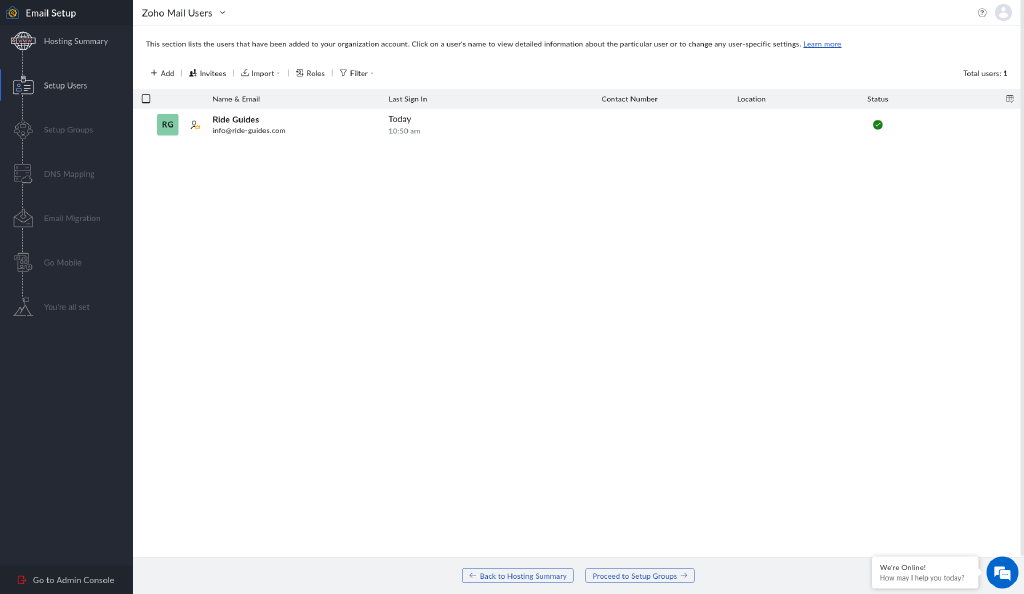
Screenshot 12: Your mailbox appears under Setup Users.
Step 5: Add the MX, SPF, and DKIM records from DNS Mapping
The DNS Mapping page lists every record you need. Add them in your DNS manager:
| Type | Host | Value | Priority |
|---|---|---|---|
| MX | @ | mx.zoho.com | 10 |
| MX | @ | mx2.zoho.com | 20 |
| MX | @ | mx3.zoho.com | 50 |
| TXT (SPF) | @ | v=spf1 include:zohomail.com ~all | – |
| TXT (DKIM) | zmail._domainkey | v=DKIM1; k=rsa; p=... (copy the full key from your Zoho console) | – |
- MX: Add all three. Remove old MX records for your previous mail server, or some mail will keep going there.
- SPF: A domain can have only one SPF record. If you already have one (it starts with
v=spf1), replace it or mergeinclude:zohomail.cominto it; don’t add a second. - DKIM: The host Zoho gave us was
zmail._domainkey. Copy the exact host and value from your own DNS Mapping page, since the key is unique to you. - These are the values Zoho showed for our account. If your account is in another Zoho data center, use exactly what your DNS Mapping page shows.
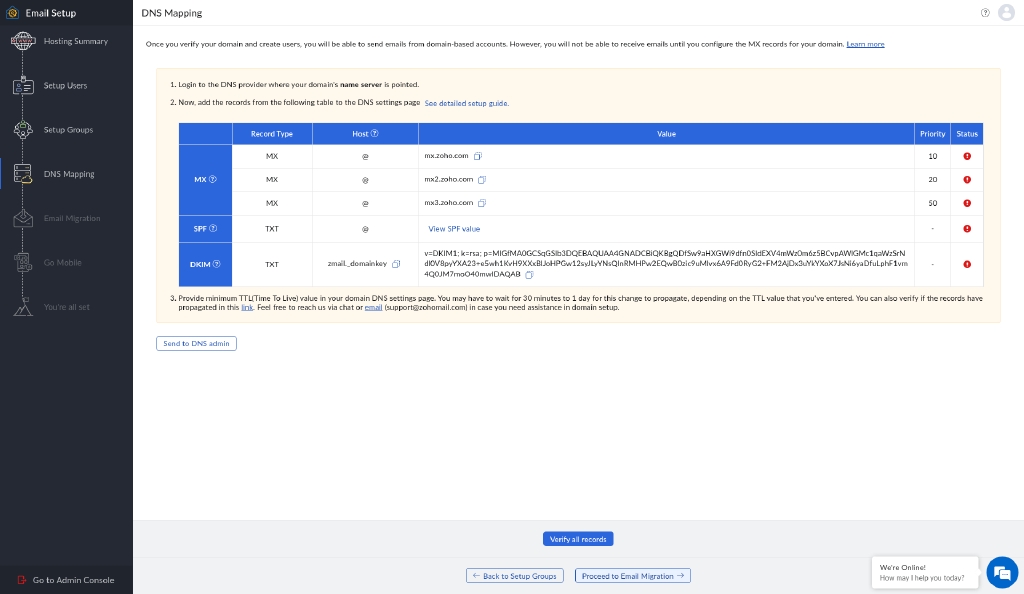
Screenshot 13: The DNS Mapping table. Red marks mean Zoho hasn’t seen the records yet.
Step 6: Click “Verify all records”
- Once your records are saved, click Verify all records on the DNS Mapping page.
- When everything is live, Zoho shows “All the records have been verified successfully.”
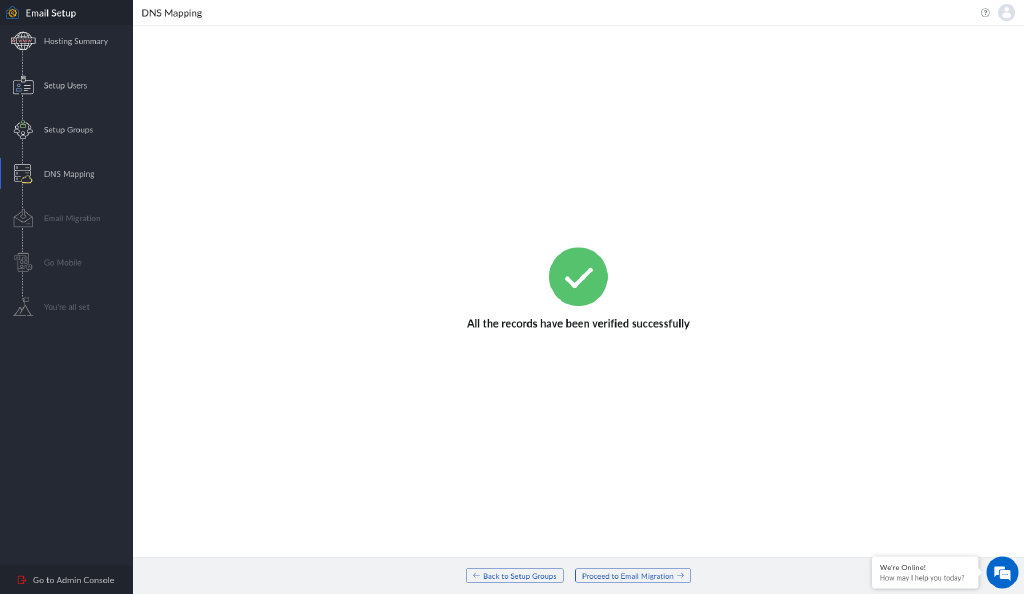
Screenshot 14: All records verified.
Stuck on DNS? This is where most setups stall. IT Services can add and verify your MX, SPF, DKIM, and DMARC records for you as a paid service. Reach us at its@internettechnologyservices.com or (949) 446-1716.
Step 7: Add a DMARC record (recommended)
DMARC tells receiving servers what to do when a message fails SPF or DKIM. Zoho recommends starting with a monitoring-only policy, p=none, then moving to quarantine and later reject.
- In the Admin Console, go to Domains, pick your domain, then Email Configuration > DMARC, and let Zoho generate the record.
- Add it as a TXT record at
_dmarc. Zoho’s example starter value isv=DMARC1; p=none; rua=mailto:admin@yourdomain.com. - Keep only one DMARC record per domain.
Step 8: Log in and test
- Log in to Zoho Mail on the web, or install the Zoho Mail app on iOS or Android.
- Send a test email from another account (like Gmail) to your new address, and reply to it.
What are the most common setup mistakes?
These are the snags we hit in our own setup:
- Adding records in a DNS panel that isn’t live. Look up your domain’s NS (nameserver) records first. A zone in another panel, like AWS Lightsail or a server panel like Virtualmin, does nothing unless your nameservers point there.
- The panel won’t take “@” or a blank host. Some DNS panels reject both. Enter your full domain name (for example,
yourdomain.com, sometimes with a trailing dot) instead. - Verifying too soon. Propagation can take minutes or hours. If Zoho can’t find a record, wait and click Verify again.
- Missing one MX record. It’s easy to save two of the three. Check that all three Zoho MX records show up before verifying.
- Two SPF records. Only one is allowed, so edit the existing one instead of adding another.
FAQ
Why not just use a free Gmail or Yahoo address for business?
A custom-domain address looks more professional and matches your website. It also lets you set up SPF, DKIM, and DMARC on your own domain and keep each address when staff leave.
Is Zoho Mail really free with a custom domain?
Yes. Zoho’s Forever Free plan includes email hosting for one domain, up to five users, and 5 GB per user.
Can I use Outlook or Apple Mail with Zoho’s free plan?
No. Zoho says IMAP, POP, and ActiveSync aren’t included in the free plan. You use the Zoho web app or its mobile apps.
Is Cloudflare Email Routing a free email account?
No. It forwards mail sent to your domain to an inbox you already have, and it doesn’t provide a mailbox. It’s free and handy if you only need to receive mail.
Does Migadu still have a free plan?
No. Migadu says its Micro plan, at $19 per year, replaced the free plan.
What happens if I add a sixth user on Zoho?
Zoho says the whole organization then has to move to a paid plan, with every user billed at the paid rate.
How long does DNS take to work?
Often minutes to a few hours. Zoho’s setup screens say it can take 30 minutes to 1 day, depending on your TTL settings.
Want it done for you?
Internet Technology Services in Dana Point, CA can set up your custom-domain email end to end: domain verification, mailboxes, and MX, SPF, DKIM, and DMARC, as a paid service. Email its@internettechnologyservices.com or call (949) 446-1716.